

A guest post by Celeste Keller.
Before I was a Salesforce admin – and to be honest, even as a junior admin – I had never heard of a SOQL query. One day, I was complaining about some information that I could not access within Salesforce, and a developer friend of mine said, “Just run a SOQL query in Workbench.” As an inexperienced admin with zero technical background prior to Salesforce, I instantly felt 1) intimidated and 2) not quite as intelligent as usual.
I mean, really, what is this Workbench thing? It even has “developer” in the URL, so it must not be for admins!
Wrong. My developer buddy took pity on me and walked me through how to get the information I was looking for. It was so simple once I knew where to look – and when I show you some of the problems it has solved for me, you will be blown away by its capabilities. Get ready, admins – Workbench is about to become your new best friend!
First, the basics:
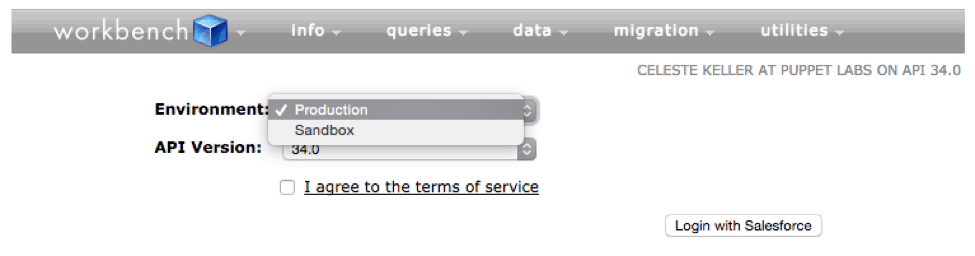
- Workbench is cloud-based – you login via your browser, here – and if you are already logged into Salesforce, it will prompt you to click on your username and then log you in.
- You can choose to log into production, or a sandbox.
 Now, the problems. Here are some of the questions I’ve been asked, and how I used workbench to get an answer or solve a problem.
How many times has each of our email templates been used?
This request has come to me from Sales and Marketing. It’s also something I like to know if I am doing an email template cleanup. Workbench gives you an easy way to find out!
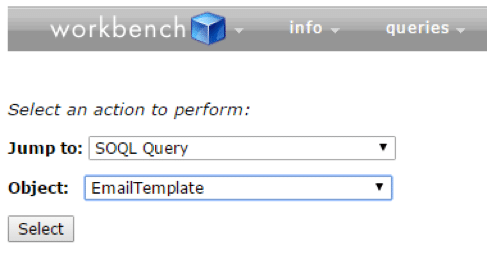
After you are logged in, go to SOQL Query and select EmailTemplate from the object list.
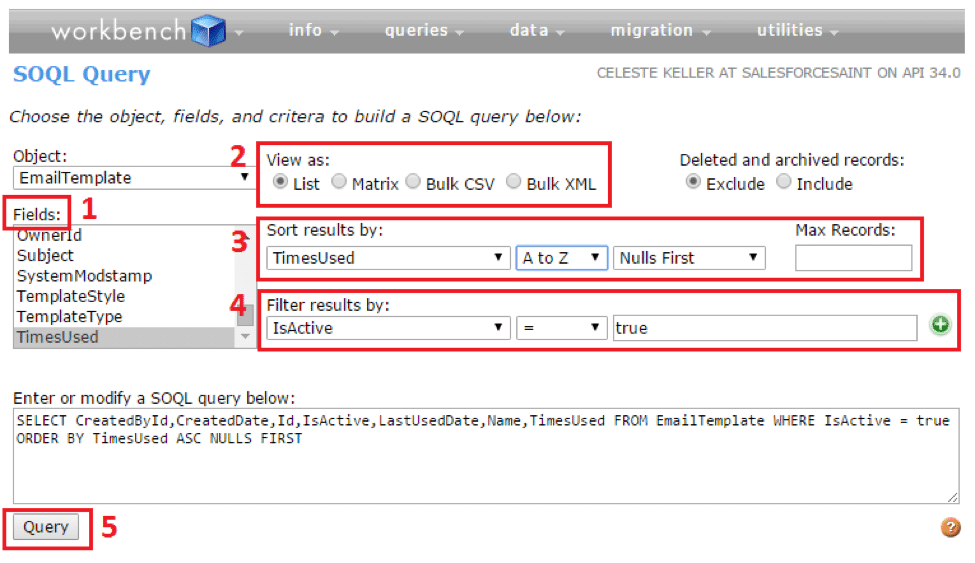
In the next screen, you can set up your query:
- Select the fields you want displayed in the results.
- Select how to display the results – for a quick query, I will select List, which will display the results on the page. If I want to update or analyze a large set of data, I will select Bulk CSV so that I have a downloadable file.
- If you want to sort by one field, you can do that as well – for this example, I want to sort by Times Used, to make it easier to see the rarely-used templates.
- You can add filters to your query – for email templates, I usually want only the active templates.
- Click Query. That’s it!
Someone deleted an opportunity, but we don’t know who, and we need it back.
Yes, this is a real question (and whether or not to allow sales reps to delete opportunities should be its own blog post someday). But it happens! You can search your org’s recycle bin for deleted records, but you will be limited by the fields available in search results. And if there are too many to look through, it will take a really long time.
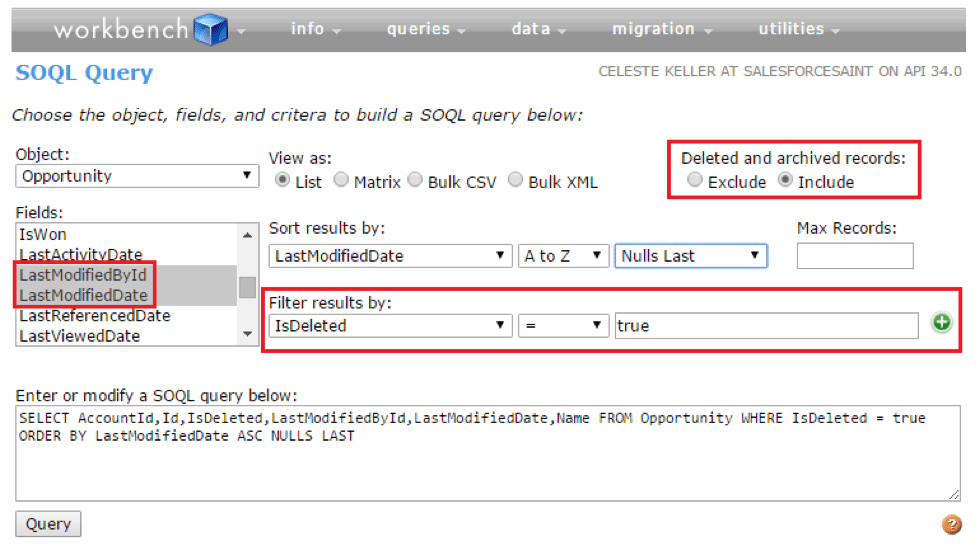
Just like the above example, start with a SOQL query, this time on the object that you want to find. The concept is the same for deleted records, with a couple of key differences:
- Make sure to pull in “Last Modified By” to find out who deleted it.
- Include deleted records.
- Add a filter to pull only deleted records into your query results (IsDeleted = true – which you cannot pull into a Salesforce report).
Other examples of useful SOQL queries in Workbench:
- Frozen or locked out users (object: UserLogin, filter: IsFrozen = true or IsPasswordLocked = true)
- Users with Knowledge licenses (object: User, filter: UserPermissionsKnowledgeUser = true)
- Who created a report folder or a dashboard folder (object: Folder, and include the CreatedById field)
I’m getting an error message that gives me a process or flow ID, but not the name.
This happened to me recently – the error message referred to “Flow with version ID 301U0000000XyZv” – but I didn’t know which flow or process it was referring to, and you can’t report on this within Salesforce.
Here’s how to access metadata components (flows, workflow rules, Apex classes, etc.) in Workbench:
After login, you can select Metadata Types & Components (you cannot select an object, just click Select and go to the next screen), or you can use the menu bar at the top of the page.

Then, select your metadata component (for this example, I am using Flow, which will include both Visual Workflow and Process Builder components):
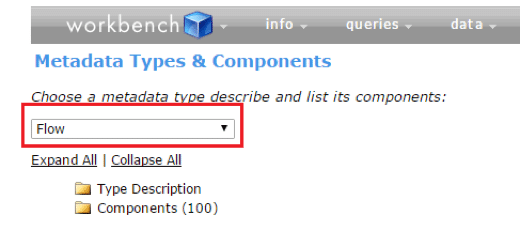
It will tell you how many of those components exist. Click “Expand All” to see the attributes of each of them (created by/date, last modified by/date, name, ID, etc.). If you are looking for a specific ID, use Ctrl + F and paste the ID to find that flow.
Is there a quick way to find out how many Apex classes/installed packages/sharing rules we have?
I was once asked to provide a count of metadata components in Salesforce, as part of a system audit. There are two ways to do this: 1) you can go to Setup and manually count these things, or 2) you can go into Workbench and have all of those numbers in a few seconds!
Just like the previous example, you start at the Metadata Types & Components page. Then select what you want to see – and voila! There are your totals.

Some caveats:
- For some metadata types, the number of components will show you the number of objects – for instance, the components total for Workflow Rules gave me 21. This really means that I have workflow rules on 21 objects. Unfortunately, there’s no good way around that one!
- If you are looking for the number of Roles, keep in mind that it will also include external portal or community roles in that total.
I want to assign a specific password to a user.
I recently had a Sales user who could not log in, and was not getting the password reset email when either of us tried to reset her password. We did not have time to submit a case to Salesforce support – but Workbench saved the day!
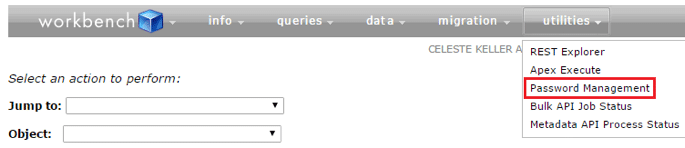
Setting or resetting a password is the easiest thing to do in Workbench – and in my situation, it really helped my Sales user get back to work quickly. You can access password management from the Utilities menu:
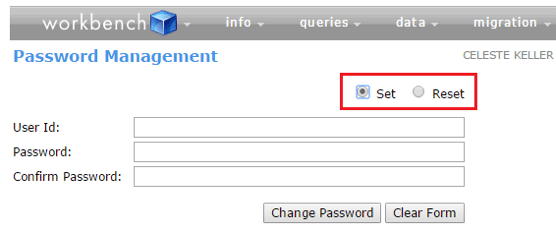
Then, simply provide the User ID and the password you want to give them. You can also reset their password by selecting the “Reset” option rather than “Set” – you only need the User ID.
Workbench has many other capabilities – these are just some of my favorites. Check out this Trailhead module for even more Workbench magic – I hope you have fun exploring this powerful tool!
About Celeste Keller
Celeste Keller became a self-taught Salesforce Admin in 2007 while working for a small tech startup in Portland, Oregon. She is a Certified Admin, Advanced Admin, Sales Cloud Consultant, and Developer. In her spare time, she is a Salesforce blogger (http://www.salesforcesaint.com/), a devoted Success Community Champion, and an advocate for diversity in technology.


 Admin Hero
Leave a reply to Scott Cancel reply