
It doesn’t matter if Salesforce is the Cadillac of systems; dirty data can make your entire company grid to a screeching halt. Basing business decisions on dirty data can cause errors, missed projections and inflated forecasts while driving the ROI of the application down exponentially.
Duplicate management is one of the elements that make up dirty data and thankfully, it’s one of the easiest issues to address. There are a plethora of free and paid tools on the AppExchange that have been fantastic additions to the platform but with the Spring ’15 release, Salesforce announced Data.com Duplicate Management; an entirely native way to manage duplicate records across the Salesforce platform (including Salesforce1)!
What’s also amazing is that you don’t need a data.com license to activate this feature, and it’s available in Professional, Enterprise, Performance and Unlimited and Developer edition orgs.
To access Data.com Duplicate Management, click Setup | Data.com Administration | Duplicate Management.
Creating Matching & Duplicate Rules
To setup Data.com Duplicate Management, there is no feature activation required. However, you do need to create and activate Matching and Duplicate Rules. When I first started to dive into these rules, I was a little confused on how they worked so let me explain them to you.
data.com uses both tools in conjunction to determine what records are matching and then how to handle a potential duplicate. Matching rules allow you to write a criteria set that will determine if there are similar records in Salesforce. This can be done using fuzzy or exact logic. Duplicate rules then determine what can be done with these matching records.
Duplicate rules allow the following behavior to be set:
alert the user that there are duplicates but allow them to proceed with the creation of the record
– or –
block the user from creating the record altogether.
Both rules need to be established and activated for this duplicate management tool to work properly.
Salesforce provides every org with default matching rules. You can activate these rules, or create your own. Click the links below to see the matching equations and criteria for each of the standard matching rules. Review these standard rules first to determine if they will work for your org before creating custom matching rules.
Should you choose to use one of the standard rules, just click Activate next to the rule to turn it on. Creating new rules is just as easy. The setup is very similar to creating a workflow rule and action. Select the object the rule is being created for, select the criteria and save it!
Unlike matching rules, there are no duplicate rules pre-defined. These need to be created from scratch. However, there are far fewer steps to go through to set these up. Here’s a screenshot of the duplicate rule in my org for the lead record.

There are a few things to notice in this duplicate rule detail. I’ll lay them out below.
Record-Level Security – The duplicate rule can determine duplicates based on two options: the records a user can see based on existing sharing rules, or a duplicate alert can be triggered across the database, bypassing the existing sharing rules for that record. Depending on the strictness of your orgs data sharing model, this will be important. Based on the selection, a duplicate rule may not trigger even if a duplicate exists because the user doesn’t have access to that record via the sharing rules.
Action on Create & Edit – based on the selection, the duplicate record can be allowed, and the user can proceed to create the duplicate, or if your business process prefers, the creation of this duplicate record can be prevented altogether by selecting Blocked from the appropriate picklist. Notice that for both of these options, there are two associated check boxes: Alert & Report. The alert option will display a warning on the record for the user with the provided Alert Text. The Report option allows the ability to report on duplicates.
Alert Text – similar to an error message, this text should be clear and concise and communicate to the user exactly what they are seeing and what their options are. The default text, in this case, is sufficient, but I always like to spice things up a little bit and tend to error on the side of overkill when it comes to help text in general.
If you want to learn how to write good error messages, check out How to Write a Great Error Message on Medium.
Order – multiple duplicate rules can be created for a single object and prioritized in the order they should be executed. If multiple duplicate rules are selected, this field will indicate the order it will be evaluated.
Once your Duplicate rules are created, it’s time to activate them and test it out!
Duplicate Management in Action
In my org, I’ve set up duplicate management for the Lead object only to accommodate our business process. When a lead is created, and matches are found, the duplicate rule will allow the user to continue with the creation of the record, but they will receive an alert. Here’s what it looks like:

Notice that the UI has changed slightly. At the top of the page, the Save buttons now show the action that will take place. By clicking on Save (Ignore Alert), the user can save the record and ignore the alert altogether. Or, they can select Save & New (Ignore Alert) to create this record and jump right back into the New lead record page.
Below the buttons are where the error message displays. Notice that the possible number of matches is indicated (8 in this case) and the Alert Text provided in the Duplicate Rule is shown.
Matching records are displayed in an excellent list view format, and the fields that were evaluated and matched to these records are highlighted in red.
The user now has all of the information needed to make an educated decision on how to proceed. The view on Salesforce1 is similar.
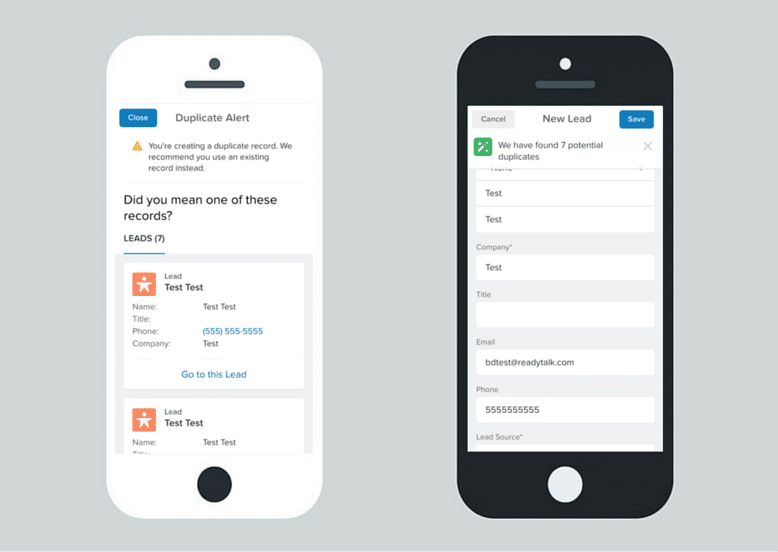
On Salesforce1, as soon as Save is tapped on the app, the page refreshes to show the first mobile screenshot above: it’s a duplicate alert with the Alert Text outlined in the Duplicate Alert. The user can then scroll through the duplicate list to see if the record is a duplicate.
By clicking Close in the upper right-hand corner, the user is redirected back to the lead they were creating, and can proceed if desired. Note that there is an alert remaining at the top of the page indicating that duplicate records have been found.
Other Duplicate Management Features
In this example, I’ve only setup Lead Duplicate Management rules, but these same rules can be created for Accounts and Contacts.
Cross-object Matching – this is a huge feature that most organizations will appreciate. Compare data across objects in Salesforce to help determine if a duplicate record already exists. This is great for related records like Lead to Contact, but it also works on custom objects.
Lead Convert Matching (Salesforce1) – when converting a Lead on Salesforce1, duplicate management can alert a user that an existing Contact is already in Salesforce, and it will provide the user the ability to convert into that current record.
Duplicate management in Salesforce became a breeze with this new feature earlier this year. If you don’t have any duplicate prevention tools currently being used in your org, then activate this as quickly as possible. If you do have an existing tool, review the current functionality of both and determine which one is best for your organization.
Have you used this tool before? Do you have any tips or suggestions for Administrators or Users? Leave a comment below!


 Admin Hero
Leave a reply to Francis Pindar Cancel reply